Title here
Summary here
Color is a key part of any website. CSS gives you plenty of options to define and change colors. We will look at how to choose color formats, make them transparent, and use wide-gamut colors.
CSS has different data types like strings and numbers. Color is a custom data type that uses other types like numbers for its values.
The easiest way to choose a color is by using one of the 148 color names built into CSS.
These are standard English names like purple, tomato, and goldenrod.
The most common names are black, white, red, blue, and gray.
While named colors are handy, you will usually need specific colors that are not in that list. CSS lets you define colors using numbers in a few different formats.
h1 {
  color: #b71540;
}
Hexadecimal notation (or hex) is a shorthand way to write RGB. It assigns a number to red, green, and blue, which are the three primary colors. Hex is the most popular way to write colors in CSS.
The hex scale uses numbers 0-9 and letters A-F. Written as six characters, these represent values from 0 to 255 for red, green, and blue.
You can add transparency to hex colors using an alpha channel.
Alpha represents the percentage of opacity.
To add transparency, write two extra characters at the end of your six-digit hex code, making it eight digits.
For example, black is #000000.
To make it 50% transparent, write #00000080.
Since the hex scale is base 16, these letters can feel unintuitive at first. Here are some common alpha values added to black.
00 as in #0000000080 as in #00000080BF as in #000000BFTo convert a two-digit hex value to a decimal, multiply the first character by 16 and add the second character.
Take BF at 75% alpha as an example.
B is 11, and 11 multiplied by 16 is 176.
F is 15.
Adding 176 and 15 gives 191, which is 75% of 255.
[!NOTE] You can also write three-digit hex shorthand. The browser doubles each character automatically. For example,
#a4ebecomes#aa44ee. To add alpha,#a4e8becomes#aa44ee88.
h1 {
  color: rgb(183 21 64);
}
RGB colors are defined using the rgb() color function.
It accepts three numbers between 0 and 255, or percentages between 0% and 100%.
To get black, set all three channels to zero using rgb(0 0 0) or rgb(0% 0% 0%).
White is the opposite with rgb(255 255 255) or rgb(100% 100% 100%).
You can set transparency in rgb() by adding a slash followed by the opacity value.
This value can be a percentage or a decimal between 0 and 1.
For example, to write 50% transparent black, use rgb(0 0 0 / 50%) or rgb(0 0 0 / 0.5).
[!NOTE] You might see commas separating the numbers in older CSS. Commas are still supported, but spaces are preferred in modern CSS for consistency.
h1 {
  color: hsl(344 79% 40%);
}
HSL stands for hue, saturation, and lightness. Hue is the angle on the color wheel from 0 to 360 degrees, starting with red at 0. An angle of 180 points to the cyan/blue range.
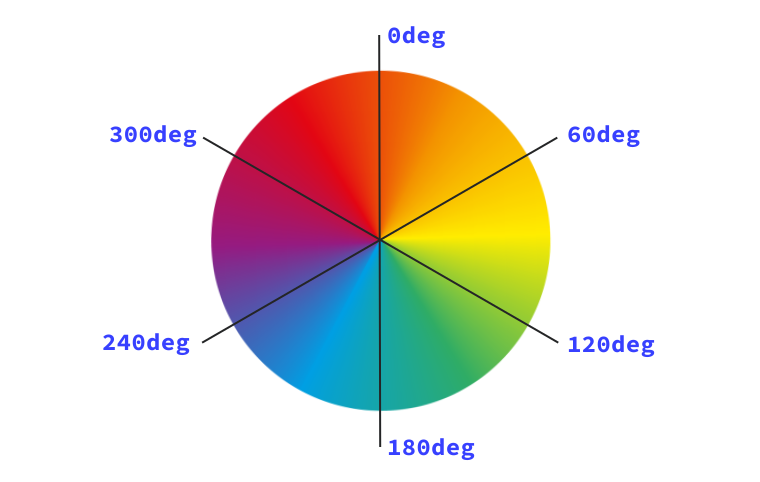
Saturation describes how vibrant the color is.
Setting saturation to 0% makes the color completely grey.
Lightness sets the amount of white or black in the color.
Setting lightness to 100% will always give you pure white.
Using the hsl() function, you write black as hsl(0 0% 0%).
Hue can be written as a plain number or using angle units like 0deg or 0turn.
Both saturation and lightness must be written as percentages.
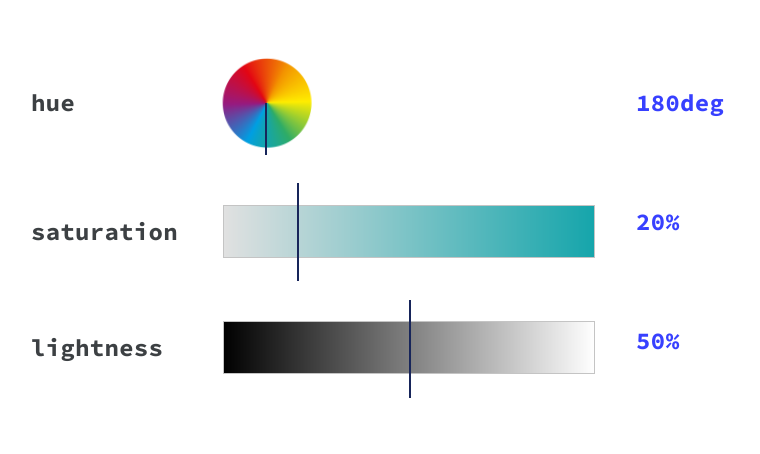
[!NOTE] The angle type in CSS represents the angle of the color wheel. It accepts degrees, turns, radians, and grads.
You can add transparency to hsl() just like rgb() by adding a slash and the alpha percentage.
For example, to set 50% transparent black, use hsl(0 0% 0% / 50%) or hsl(0 0% 0% / 0.5).
RGB and HSL define colors inside the sRGB gamut. Modern monitors support many more colors that lie outside this gamut. CSS has newer functions to access these high-definition colors.
[!NOTE] Think of color gamuts as the range of colors a screen can display, and color spaces as how you map those colors. You can read more in the High definition CSS color guide.
color() functionh1 {
color: color(srgb 0.9 0.2 0.4);
}The color() function lets you specify colors in a chosen color space.
The first argument is the color space name.
The next arguments are the color channels.
You can add transparency using a slash and a decimal or percentage at the end.
For example, the dark red color rgb(183 21 64) can be written with percentages as rgb(72% 8% 25%).
Using the color() function in the srgb space, we write color(srgb .72 .08 .25).
The srgb space uses values from 0 to 1 instead of 0 to 255.
You can choose from many color spaces based on your needs.
[!NOTE] Currently all color spaces in CSS use three channels plus an alpha channel. Future updates may add spaces with different channels like CMYK.
h1 {
  color: color(display-p3 0.9 0.2 0.4);
}
The Display P3 color space has 50% more colors than sRGB.
You can use it inside the color() function.
Black is written as color(display-p3 0 0 0).
Because the color space is wider, the same channel values will represent different physical colors on screen.
The orange color color(srgb 1 .5 0) is equal to color(display-p3 0.93596 0.52724 0.1983).
You can make a much more vibrant orange by writing color(display-p3 1 .5 0).
Oklab is a color space defined using the oklab() function.
It uses lightness, an a channel, and a b channel.
It is very helpful for making smooth gradients and changing saturation without affecting lightness or hue.
h1 {
  color: oklab(75% 0.1 0.1);
}
The lightness channel goes from 0% to 100%.
The a channel goes from -0.4 to 0.4, where lower values are greener and higher values are redder.
The b channel goes from -0.4 to 0.4, where lower values are bluer and higher values are yellower.
OkLCh is a cylindrical version of Oklab. It uses lightness, chroma, and hue. It lets you adjust colors in a uniform way, meaning changing the hue will not change the perceived lightness or saturation.
h1 {
  color: oklch(80% 0.1 200);
}
Chroma is similar to saturation.
Black is oklch(0 0 0) and white is oklch(1 0 0).
Chroma goes from 0 to 0.4.
Hue is in degrees, just like HSL.
You do not need to memorize every color space. Hex and RGB are common in most projects and design tools. HSL and OkLCh are helpful because they are easier for humans to guess and manipulate.
CSS has special color keywords.
transparent is fully transparent and is the default background color for elements.currentColor is the dynamic value of the element’s text color, so if your text is red, border-color: currentColor will make the border red too.[!NOTE] System keywords match operating system choices. For example,
ButtonBordermatches the operating system’s button border color.
You can create color variations dynamically in CSS for hover states or borders.
color-mix()The color-mix() function lets you mix two colors together.
This is great for mixing a base color with white or black to make lighter or darker variations.
You specify the two colors, how to mix them, and the percentage of each.
[!NOTE] The resulting color can vary depending on which color space you do the mixing in. Different color spaces produce different mixed tones.
For color spaces that have a hue, you can decide which direction to take around the color wheel.
The default path is shorter, but you can choose longer, increasing, or decreasing.
Relative color syntax lets you take a base color and make calculations on its channels to create a new color.
h1 {
  color: oklch(from red l c h);
}
This takes red, maps it to OkLCh channels, and returns it.
You can use calc() to modify the channels.
h1 {
  color: oklch(from oklch(62% 0.25 29) calc(l / 2) c 180);
}
This halves the lightness channel and sets the hue to 180, creating a dark green color. This syntax is extremely useful with custom properties.
You can do this with any color function.
It is easiest to use functions like oklch or hsl where the channels represent things like lightness directly.
h1 {
  color: oklch(from var(--primary-color) calc(l * 0.9) c h);
}If you define a color that a monitor does not support, the browser uses a process called gamut mapping to find the closest matching color it can display.
You can use the color-gamut media query to define separate colors for different monitor capabilities.
Any CSS property that accepts color values will support all these color formats. You can use color for text styles, shadows, borders, outlines, gradients, and backgrounds.
Adapted from Learn CSS © Google and contributors, licensed under CC BY 4.0 (prose) and Apache 2.0 (code samples).