Title here
Summary here
CSS stands for Cascading Stylesheets. The cascade is the system the browser uses to solve styling conflicts. If two or more rules target the same HTML element, the cascade decides which rule wins.
For example, look at this CSS.
button {
  color: red;
}

button {
  color: blue;
}
The browser will color the button text blue.
Understanding this conflict resolution system is key to working with CSS. The browser decides which style wins using four steps.
!important rule that override normal behaviorThe order of your CSS styles affects how conflicts are resolved. This is the last check the browser makes. It only comes into play if two conflicting styles are equal in every other step.
The button example at the start of this lesson is a perfect example of position. Both rules come from the same stylesheet and have identical selectors. Since the rules are equal in every other way, the last one written wins.
Styles can come from different places on your page.
You might have a stylesheet linked in a link tag, styles inside a style tag, or inline styles directly on the HTML element.
If you link one stylesheet at the top of your HTML and another stylesheet at the bottom, the bottom one has higher priority. The same order applies to style tags. When all other rules are tied, the last style the browser reads is the one it uses.
This order also applies to embedded style tags. If you declare a style tag before a linked stylesheet, the linked stylesheet wins because it comes later.
Position also applies to the order of declarations inside a single rule.
In this example, the element will have a purple background because background: purple comes last.
The browser reads the green background first, then replaces it with purple.
.my-element {
  background: green;
  background: purple;
}
This behavior is very useful for setting up fallbacks. If you write a newer property value that older browsers do not support, you can list a simple fallback first. If the browser understands the newer property, it will overwrite the fallback. If it does not understand the newer line, it simply ignores it and keeps the fallback.
.my-element {
  font-size: 1.5rem;
  font-size: clamp(1.5rem, 1rem + 3vw, 2rem);
}
[!NOTE] This works because browsers ignore lines they do not understand. Unlike other programming languages, CSS will not crash or throw an error if it sees a line it cannot parse. It just skips that line and keeps moving.
Specificity is a scoring system the browser uses to decide which selector is the most specific. A rule with a higher score will always win over a rule with a lower score. This is true even if the lower scoring rule comes later in your stylesheet.
We will cover the exact scoring math in the next lesson. For now, remember that more specific selectors have higher priority.
For example, targeting a class is more specific than targeting a generic HTML tag. In this case, the text will be red because the class selector wins over the heading selector.
<h1 class="my-element">Heading</h1>.my-element {
color: red;
}
h1 {
color: blue;
}Using an ID selector is even more specific than using a class. Because ID selectors are so strong, it is usually a bad idea to use them for styling. They make it very hard to override your styles later.
The points for all selectors you chain together are added up.
If you use a long list of classes and states like a.my-class.another-class[href]:hover, the specificity score becomes very high.
This makes the style hard to overwrite.
Keep your selectors as simple as possible to keep your code reusable.
The styles you write are not the only styles applied to a page. The browser has its own default stylesheet. Users can also have custom styles from browser extensions or accessibility settings.
The browser sorts these styles by where they come from. Here is the order from lowest priority to highest priority.
!important flag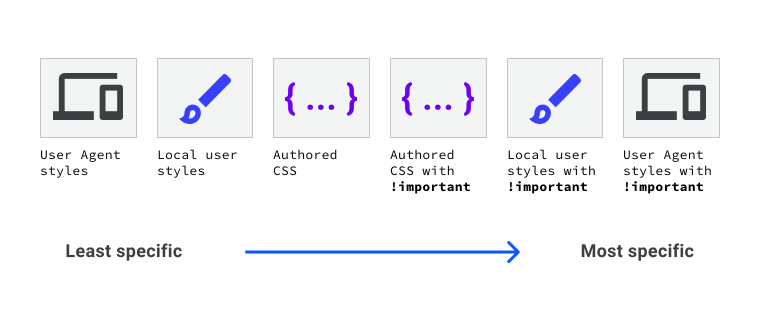
CSS rules are also sorted by their type of importance. Here is the order of importance from lowest to highest.
!important tagActive animations and transitions are given high priority because their main job is to change the visual state of the screen.
Your browser developer tools are the best way to see why a style is not applying. They will display all the selectors matching an element, with the losing styles crossed out.
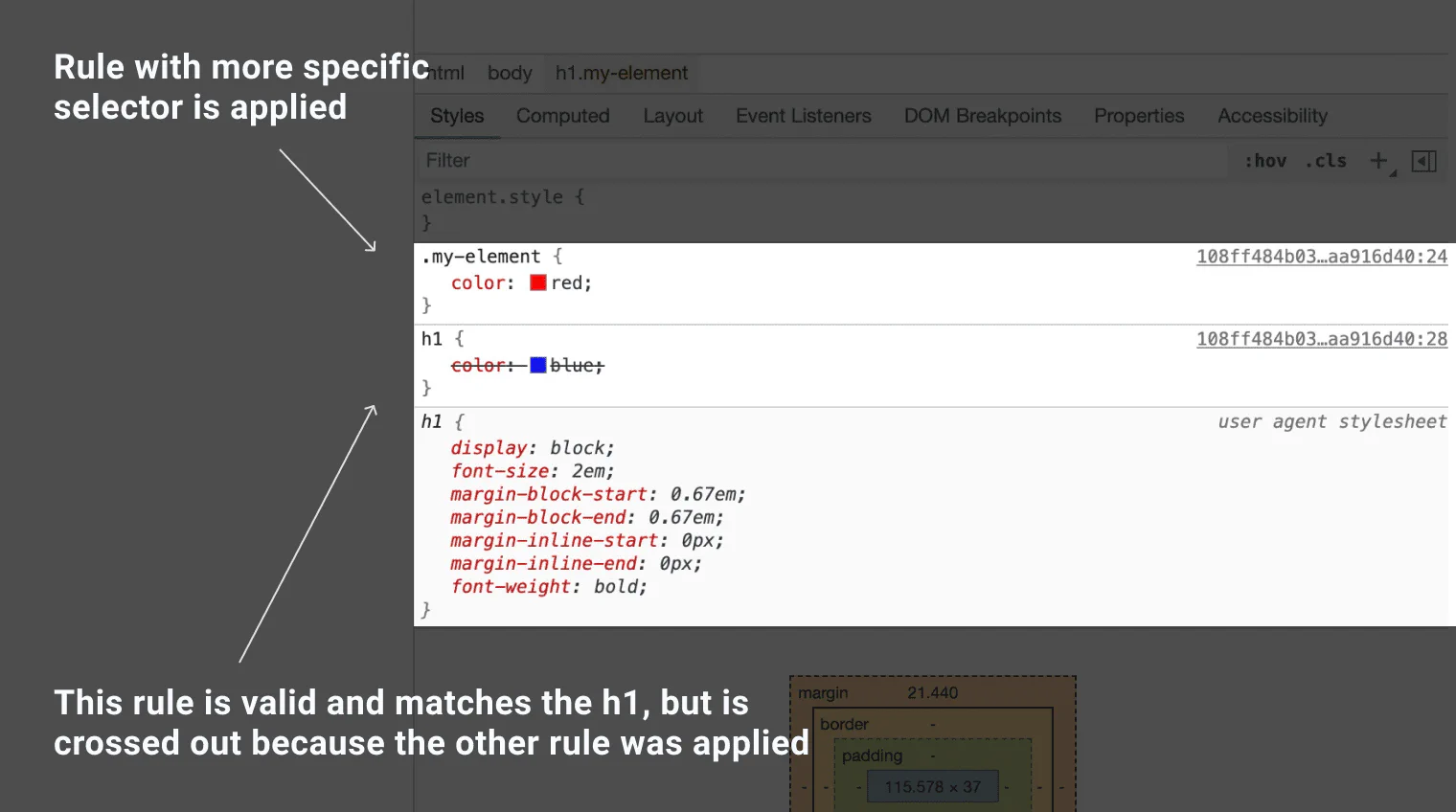
If the style you expect to see is not listed at all, your selector did not match the element. Check for typos in your class names or element selectors.
Adapted from Learn CSS © Google and contributors, licensed under CC BY 4.0 (prose) and Apache 2.0 (code samples).