Title here
Summary here
Imagine you have a bunch of items you plan to buy on your next grocery trip. One common way to show this is a list. But how can you add styling to your grocery list?
<ul>
  <li>oat milk</li>
  <li>rhubarb</li>
  <li>cereal</li>
  <li>pie crust</li>
</ul>The list above started with a semantic element, the <ul>, with grocery list items as children.
The items are <li> elements.
If you inspect each <li> element, you can see that they all have display: list-item.
That is why the browser shows a ::marker by default.
li {
  display: list-item;
}
There are two other types of lists.
Ordered lists are made with <ol>.
In that case the list item shows a number as the ::marker.
<ol>
  <li>oat milk</li>
  <li>rhubarb</li>
  <li>cereal</li>
  <li>pie crust</li>
</ol>
Description lists are made with <dl>.
This list type does not use the <li> list item element.
<dl>
  <dt>oat milk</dt>
  <dd>- non dairy trendy drink</dd>
  <dt>cereal</dt>
  <dd>- breakfast food</dd>
</dl>Now that you know how to make a list, you can style one. The first CSS properties to learn are the ones you apply to the whole list.
There are three list-style properties you can use to style your example.
They are list-style-position, list-style-image, and list-style-type.
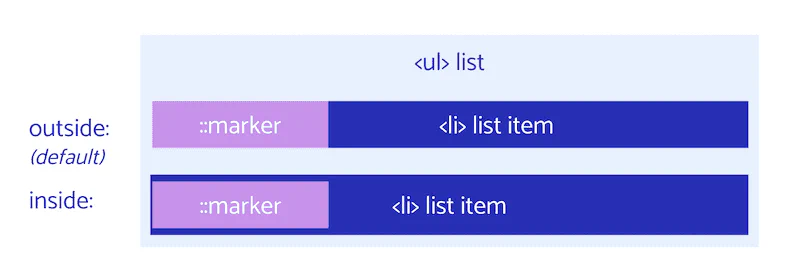
list-style-positionlist-style-position lets you move your bullet point either inside or outside the list item’s contents.
The default is outside, which means the bullet point is not part of the list item’s contents.
The inside value moves the bullet in among the list item’s contents.
list-style-imagelist-style-image lets you swap your list’s bullet points for images.
You can set an image with a url, or use none.
The image can be a regular image, an SVG, or even a GIF.
You can also use any media type, or a data URI.
Let’s look at how to add an image of each grocery item as the list-style-image.
[!NOTE] This property is a bit limited when it comes to the position and size of the bullets. We recommend the
::markerproperty for a more flexible approach.
list-style-typeThe last option is to style the list-style-type.
This changes the bullet points to known style keywords, custom strings, emoji, and more.
You can view all of the possible list style types here.
list-style shorthandNow that you have all of these single properties, you can use the list-style shorthand to set all of your list styles in one line.
list-style: <'list-style-type'> || <'list-style-position'> || <'list-style-image'>The list-style shorthand lets you declare one, two, or three of the list-style properties in any order.
If list-style-type and list-style-image are both set, then list-style-type is used as a fallback when the image is not available.
/* type */
list-style: square;

/* image */
list-style: url('../img/shape.png');

/* position */
list-style: inside;

/* type | position */
list-style: georgian inside;

/* type | image | position */
list-style: lower-roman url('../img/shape.png') outside;

/* Keyword value */
list-style: none;

/* Global values */
list-style: inherit;
list-style: initial;
list-style: revert;
list-style: unset;
This is the most used property of the list styles covered in this section.
One common use is list-style: none to hide the default styles.
Default styles come from the browser, and you often see reset stylesheets removing list styles like padding and margins.
You can also use this shorthand to set styles, like list-style: square inside;.
So far the examples have focused on styling a whole list and its list items. But what about a more precise approach?
::marker pseudo-elementThe list item marker is the bullet, hyphen, or roman numeral that marks each item in your list.
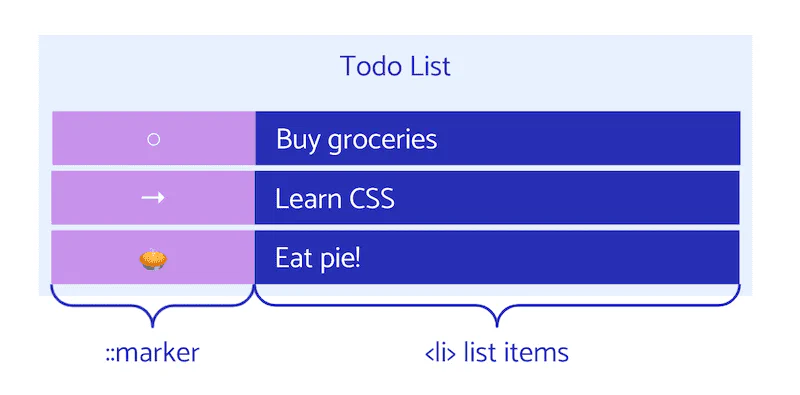
If you inspect the list in DevTools, you can see a ::marker element for each list item, even though you never wrote one in HTML.
If you inspect the ::marker further, you will see the browser’s default styling for it.
::marker {
    unicode-bidi: isolate;
    font-variant-numeric: tabular-nums;
    text-transform: none;
    text-indent: 0px !important;
    text-align: start !important;
    text-align-last: start !important;
}
When you make a list, each item gets a marker, even though there is no bullet point or roman numeral in your HTML.
This is a pseudo-element because the browser makes it for you, and gives you a limited set of styles to target it.
Learn more about the anatomy of the CSS bullet.
The ::marker has limited support in Safari.
In the CSS layout model, list item markers are shown by a marker box tied to each list item. The marker box is the container that usually holds the bullet or number.
To style the marker box, you can use the ::marker selector.
This lets you select just the marker instead of styling the whole list.
[!NOTE] The
::markerelements come before any pseudo-elements you may have added with CSS::before.
Now that you have selected the marker, let’s look at the styles you can use on this selector. You can learn more about Custom bullets with CSS ::marker on web.dev.
There are quite a few CSS ::marker properties you can use.
animation-*transition-*colordirectionfont-*contentunicode-bidiwhite-space[!NOTE] In ordered lists, the bullets default to numbers. The
::markercontent value is a use case for counters to make custom numbering.
All of the list-style and ::marker properties know to style <li> elements because they have a default display value of list-item.
You can also turn things that are not an <li> into a list item.
You do this by adding the property display: list-item.
One example of using display: list-item is when you want a hanging bullet on a heading, so you can change it to something else with ::marker.
The next example shows a heading using display: list-item for styling, with a list that uses correct list markup.
You can turn anything into a list item view with display.
But you should not use this instead of correct list markup if the content really is a list.
Changing how an item looks does not change how accessibility services read and recognize it.
So it will not be read as a list item to screen readers or switch devices.
You should always use semantic markup and make lists with <li> whenever you can.
These resources can help you learn more about styling lists.
Adapted from Learn CSS © Google and contributors, licensed under CC BY 4.0 (prose) and Apache 2.0 (code samples).