Title here
Summary here
If you want to style specific elements on a webpage, you need to select them first. CSS selectors let you target the exact elements you want to style.
For example, say you want only the first paragraph inside an article to be large and red.
<article>
  <p>I want to be red and large.</p>
  <p>I want to be normal sized.</p>
</article>
You can target that first paragraph with this selector.
article p:first-of-type {
  color: red;
  font-size: 1.5em;
}To write CSS, you need to understand the syntax of a style rule. A rule has a selector and one or more declarations.
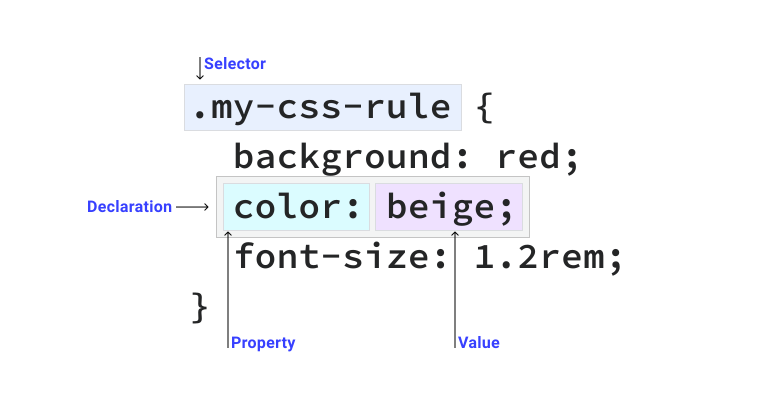
The selector in this rule is .my-css-rule.
It tells the browser to find all elements with that class name.
Inside the curly braces, we write declarations.
Each declaration has a property and a value separated by a colon, ending with a semicolon.
The most common selectors target HTML tags, classes, IDs, or element attributes.
The universal selector is written as an asterisk *.
It matches every single element on the page.
* {
  color: hotpink;
}
This rule will make all text on your page hot pink. It is supported in all browsers.
A type selector targets an HTML element tag directly.
section {
  padding: 2em;
}
This rule adds padding to every <section> element.
It has full browser support.
A class selector targets elements with a specific class attribute.
You write it with a dot . followed by the class name.
.my-class {
  color: blue;
}
This matches any HTML element that has class="my-class".
Classes are reusable, so you can apply this to many elements.
It has full browser support.
An ID selector targets a single element with a specific ID attribute.
You write it with a hash # followed by the ID.
#my-id {
  color: green;
}
Unlike classes, IDs must be unique on the page. You should only use an ID once. It has full browser support.
An attribute selector targets elements based on their HTML attributes.
You write them inside square brackets [].
[href] {
  color: red;
}
This rule matches any element that has an href attribute, like a link.
You can also match specific attribute values.
[href="https://google.com"] {
  color: blue;
}
This matches only links pointing to Google. It has full browser support.
Combinators let you select elements based on how they relate to other elements in the HTML tree.
A space between selectors targets child elements at any nesting level.
article p {
  color: gray;
}
This targets all paragraphs inside an article, even if they are nested inside divs.
The > symbol targets only direct children.
article > p {
  font-weight: bold;
}
This targets paragraphs that are directly inside the article. It will ignore paragraphs nested inside other wrapper tags.
The + symbol targets an element that comes immediately after another element at the same level.
h1 + p {
  margin-top: 0;
}
This targets only the paragraph that comes immediately after an h1 heading.
The ~ symbol targets siblings that come after an element, even if they are not directly adjacent.
h1 ~ p {
  color: red;
}
This targets all paragraphs that follow an h1 sibling.
If you want to apply the same style to different elements, you can group them using a comma.
h1, h2, p {
  font-family: sans-serif;
}
This applies the font to all headings and paragraphs in a single rule.
Adapted from Learn CSS © Google and contributors, licensed under CC BY 4.0 (prose) and Apache 2.0 (code samples).