Title here
Summary here
Say you’ve got a couple of elements that are absolutely positioned. They are supposed to sit on top of each other. You might write a bit of HTML like this.
<div class="stacked-items">
    <div class="item-1">Item 1</div>
    <div class="item-2">Item 2</div>
</div>
But which one sits on top of the other by default? To know which item would do that, you need to understand z-index and stacking contexts.
The z-index property sets a layer order for HTML.
It works along the 3D space of the browser, the Z axis.
This is the axis that shows which layers are closer to you and which are further away.
The vertical axis on the web is the Y axis and the horizontal axis is the X axis.
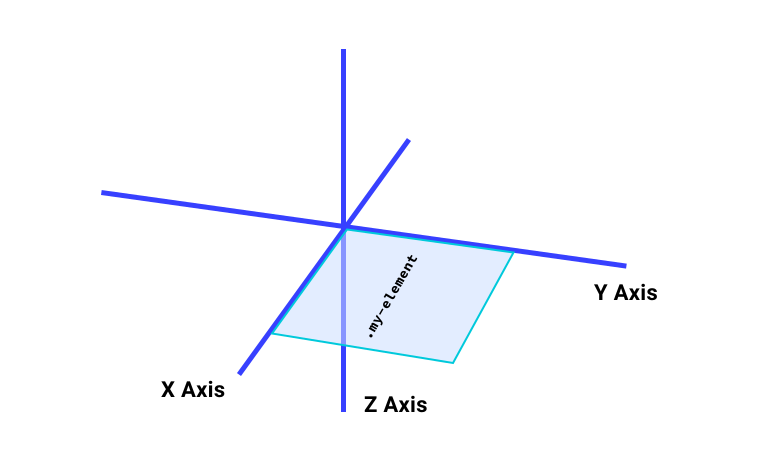
The z-index property takes a number, which can be positive or negative.
An element appears above another element if it has a higher z-index value.
If you don’t set a z-index on your elements, the default behavior is that the document source order decides the Z axis.
This means elements further down the document sit on top of elements that appear before them.
In normal flow, you might set a value for z-index and find it isn’t working.
If that happens, you need to set the element’s position value to anything other than static.
This is a common place where people struggle with z-index.
This isn’t the case in a flexbox or grid context.
There you can change the z-index of flex or grid items without adding position: relative.
To set an element behind another element, add a negative value for z-index.
.my-element {
    background: rgb(232 240 254 / 0.4);
}

.my-element .child {
    position: relative;
    z-index: -1;
}
As long as .my-element has the initial z-index value of auto, the .child element will sit behind it.
Add the following CSS to .my-element, and the .child element won’t sit behind it.
.my-element {
  position: relative;
  z-index: 0;
  background: rgb(232 240 254 / 0.4);
}
Now .my-element has a position value that isn’t static and a z-index value that isn’t auto.
This makes it create a new stacking context.
So even if you set .child to have a z-index of -999, it would still not sit behind .my-parent.
A stacking context is a group of elements that have a common parent and move up and down the z axis together.
In this example, the first parent element has a z-index of 1, so it creates a new stacking context.
Its child element has a z-index of 999.
Next to this parent, there is another parent element with one child.
This parent has a z-index of 2 and its child element also has a z-index of 2.
Because both parents create a stacking context, the z-index of all the children is based on the z-index of their parent.
The z-index of elements inside a stacking context is always relative to the parent’s current order in its own stacking context.
[!NOTE] The
<html>element is a stacking context itself and nothing can ever go behind it. You can put things behind the<body>until you create a stacking context with it.
You don’t need to apply z-index and position to create a new stacking context.
You can create one by adding a value for a property that creates a new composite layer, such as opacity, will-change, and transform.
You can see a full list of properties here.
Let’s explain what a composite layer is. Imagine a web page is a canvas. A browser takes your HTML and CSS and uses them to work out how big to make the canvas. It then paints the page on this canvas. If an element changes, say it changes position, the browser has to go back and work out what to paint again.
To help with performance, the browser creates new composite layers that are layered on top of the canvas.
These are a bit like sticky notes.
Moving one around and changing it doesn’t have a big impact on the overall canvas.
A new composite layer is created for elements with opacity, transform, and will-change because these are very likely to change.
So the browser makes sure that change is as fast as possible by using the GPU to apply the style changes.
[!NOTE] You can also create a stacking context by adding a
filterand settingbackface-visibility: hidden.
Adapted from Learn CSS © Google and contributors, licensed under CC BY 4.0 (prose) and Apache 2.0 (code samples).